
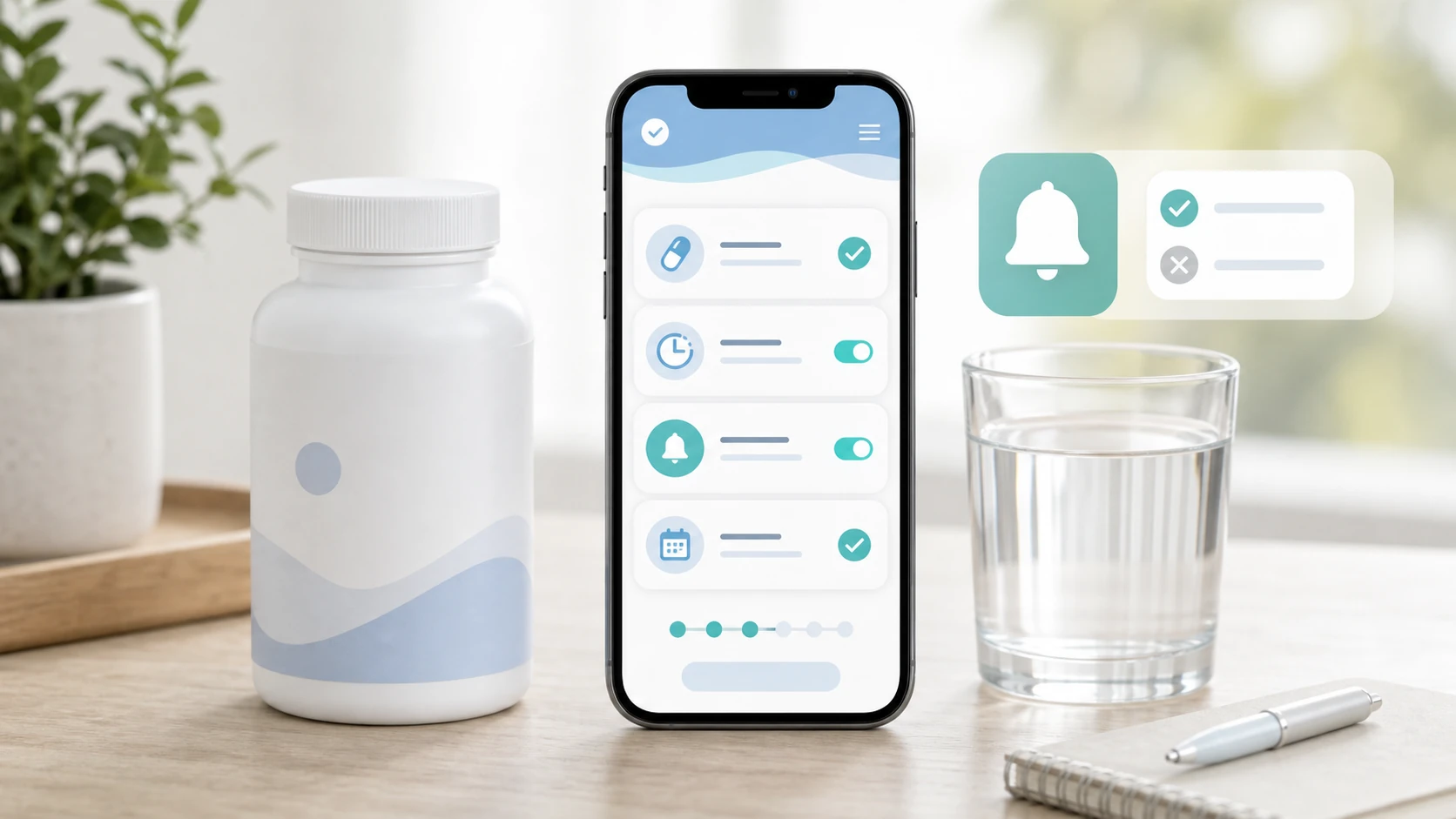
Your phone is one of the easiest tools for remembering supplements, but only if the reminder is set up the right way. A random alarm that says "vitamins" is easy to dismiss. A good supplement reminder tells you what to take, when to take it, and what routine it belongs to. Vitamin Alerts is designed to make this simple: add your vitamins, choose your reminder time, allow notifications, and let the app alert you when it is time to take them. The goal is not to create another complicated health system. The goal is to make your supplement routine easier to remember every day.
Why Phone Reminders Work for Supplements
A phone reminder gives your vitamin routine a clear prompt. If you are comparing reminder tools, the vitamin reminder app feature checklist explains what a dedicated supplement app should do better than a basic alarm.
Your Phone Is Already Part of Your Day
Most people check their phones throughout the day.
That makes your phone a practical place to set supplement reminders. You do not need to rely on memory alone. You can use a notification to create a clear moment where your phone tells you, "Now is the time."
This matters because vitamins are easy to forget when there is no obvious cue. The bottle may be in a cabinet. The morning may be rushed. The day may get busy. A phone reminder gives the habit a starting point.
A good supplement reminder can help you:
- Remember what to take.
Take it at a consistent time.
Connect the habit to breakfast, lunch, dinner, or bedtime.
Reduce missed days.
Keep your routine from disappearing.
Your phone can become a useful supplement cue when the reminder is specific and easy to act on.
A Reminder App Is Better Than a Random Alarm
A basic alarm can help, but it usually lacks context.
If your alarm simply says "supplements," you still have to remember which supplements, where they are, and what routine you planned. That may work for one product, but it becomes confusing when you take multiple vitamins or have a morning and night routine.
Vitamin Alerts is built specifically for this problem. You add the vitamins you take, set the times that fit your routine, and receive alerts that are connected to your supplement habit.
Instead of a vague alarm, you can use a reminder like:
- Take morning vitamins with breakfast.
- Take vitamin D after coffee.
- Take magnesium after brushing teeth.
- Take supplements with lunch.
- Take evening vitamins with water.
A specific reminder is easier to follow because it tells you the next action.
A supplement reminder app works better when it turns a vague intention into a clear instruction.
The Best Reminder Is One You Can Act On
The most important part of a supplement reminder is timing.
A reminder at the wrong time becomes noise. If it goes off while you are driving, rushing, in a meeting, or away from your vitamins, you are more likely to dismiss it. The best reminder time is the time when your vitamins, water, and daily routine are all close together.
Ask yourself:
- Am I usually available at this time?
- Are my supplements nearby?
- Do I have water?
- Is this connected to a meal or habit?
- Can I act within one minute?
If the answer is yes, it is probably a good reminder time.
A reminder only works if it appears when you can actually take action.
Phone reminders work best when they are specific, realistic, and connected to your daily routine.
How to Set Supplement Reminders in Vitamin Alerts
Vitamin Alerts is simple by design: add your vitamins, set the alert, and follow the reminder.
Step 1: Open Vitamin Alerts
Start by opening the Vitamin Alerts app on your phone.
The first goal is not to build a perfect supplement system. The first goal is to create one reminder that you will actually follow. Start with the vitamin or supplement you most want to take consistently.
Good first choices might include:
- Your daily multivitamin
- Vitamin D
- Magnesium
- Probiotic
- Collagen
- Fish oil
- Any supplement you keep forgetting
Do not add every bottle you own if that makes the setup feel overwhelming. You can add more later after your first reminder is working.
Start with one important supplement so your first reminder feels simple and manageable.
Step 2: Add Your Supplement
Add the supplement name clearly.
Use the actual product name or a name you will recognize immediately when the reminder appears. The clearer the name, the easier the alert will be to act on.
Better supplement names:
- Morning Multivitamin
- Vitamin D
- Magnesium Glycinate
- Probiotic
- Collagen Powder
- Evening Magnesium
- Lunch Supplements
Avoid vague names like "pill," "capsules," or "health stuff." A reminder should not make you think. It should tell you what to do.
A clear supplement name makes the phone alert more useful when it appears.
Step 3: Choose the Reminder Time
Choose a reminder time that matches your real schedule.
This is where many people make the mistake of picking an ideal time instead of a practical one. If you set a reminder for 7:00 AM but you are always rushing, it will not work. If you usually make coffee at 8:30 AM and your vitamins are nearby, that is a better time.
Common reminder times include:
If you want a deeper breakdown, read best reminder times for vitamins before choosing your final alert schedule.
- With breakfast
- After coffee
- With lunch
- After dinner
- After brushing teeth
- Before bed
- During a Sunday weekly reset
Try to connect the alert to a habit that already happens. This makes the reminder part of your day instead of a random interruption.
The best reminder time is the time that fits your real routine.
Step 4: Allow Notifications
Vitamin Alerts needs notification permission to remind you.
When your phone asks whether Vitamin Alerts can send notifications, allow notifications. If notifications are turned off, the app may have your supplement schedule, but you may not see the reminder when it is time to take it.
After you allow notifications, check that your phone is not hiding or silencing them. On many phones, settings like Focus Mode, Do Not Disturb, Sleep Mode, notification summaries, or app notification settings can block or delay reminders.
Simple notification checklist:
Notifications are allowed for Vitamin Alerts.
The reminder time is correct.
Focus Mode or Do Not Disturb is not blocking the app.
Sounds, banners, or lock screen alerts are set the way you want.
Your phone time zone is correct, especially when traveling.
A supplement reminder only works if your phone is allowed to show it.
Step 5: Save and Test the Reminder
After you add the supplement and choose the time, save the reminder.
For your first reminder, it can help to test it with a time that is coming soon. This lets you confirm that the alert appears correctly and that your phone settings are not blocking it. Once you know it works, adjust the reminder to your normal daily time.
When the alert appears, take the supplement if appropriate, then continue your routine.
Testing your first reminder helps make sure the app and phone settings are working before you rely on it daily.
Setting a supplement reminder in Vitamin Alerts should be simple: add the supplement, choose a realistic time, allow notifications, and save the alert.
For the full product walkthrough, read how to use Vitamin Alerts.
Best Times to Set Supplement Reminders
The best reminder time depends on when you are most consistent.
Morning Supplement Reminders
Morning reminders work well for people with a steady start to the day.
If you eat breakfast, make coffee, fill a water bottle, or sit down at the same desk each morning, those habits can become strong cues for your supplements.
Morning reminder examples:
- Take vitamins with breakfast.
- Take vitamin D after coffee.
Take supplements with first glass of water.
Take morning vitamins before starting work.
Morning reminders are helpful because they let you complete the habit early. Once the vitamins are taken, you do not have to keep remembering them throughout the day.
Morning supplement reminders work best when your mornings are predictable and your vitamins are nearby.
Lunch or Afternoon Supplement Reminders
Midday reminders work well for people who skip breakfast or have a reliable lunch routine.
If lunch is your most consistent meal, set your supplement reminder around that time. This can be useful for people who work from home, pack lunch, or take a real break in the middle of the day.
Midday reminder examples:
- Take supplements with lunch.
Take vitamins before returning to work.
Take lunch supplements with water.
Check Vitamin Alerts after lunch.
The challenge is that afternoons can become busy. If you often miss lunch or work through the reminder, morning or evening may be better.
Midday supplement reminders are useful when lunch is a stable part of your day.
Evening Supplement Reminders
Evening reminders work well for people with calmer nights.
If your mornings are rushed, an evening reminder may be easier to follow. You can connect it to dinner, brushing your teeth, skincare, preparing for bed, or filling a water glass.
Evening reminder examples:
- Take evening vitamins after dinner.
- Take magnesium after brushing teeth.
- Take supplements before bedtime routine.
Take vitamins before phone goes into Sleep Mode.
Try not to set the reminder too late. If you are already in bed or too tired, you may ignore it.
Evening supplement reminders work best when they happen before you are too tired to act.
Weekly Refill Reminders
Daily reminders help you take supplements. Weekly reminders help you keep the system ready.
Set a weekly reminder to check your bottles, refill a pill organizer, and notice when products are running low. This prevents a common problem: you finally build a routine, then the bottle runs out and the habit breaks.
A weekly supplement reset might include:
- Refill your pill organizer.
- Check which bottles are low.
Reorder anything with 7 to 14 days left.
Remove empty bottles.
Update your Vitamin Alerts schedule if needed.
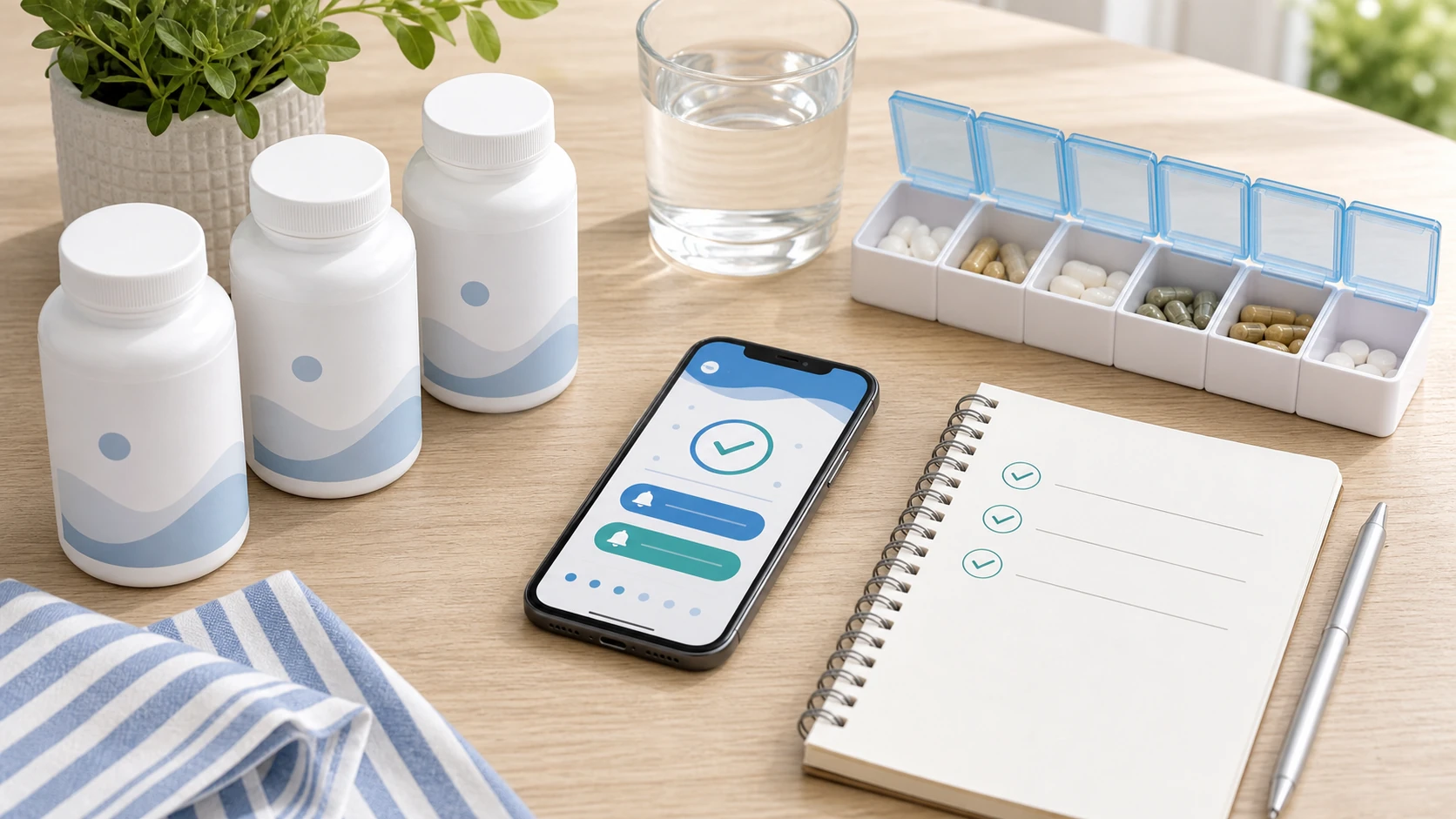
A weekly refill reminder helps keep your daily supplement routine from being interrupted.
Choose reminder times based on the habits and meals you already repeat most often.
If you are unsure whether those reminders belong in the morning or evening, compare the options in morning vs night vitamin routines.
How to Make Phone Supplement Reminders Actually Work
The setup matters more than the notification itself.
Make the Reminder Specific
A specific reminder is easier to follow than a vague one.
If the notification only says "vitamins," it can become background noise. If it says "Take morning vitamins with breakfast," the action is clear.
Strong reminder labels:
- Take morning vitamins with breakfast.
- Take vitamin D after coffee.
- Take magnesium after brushing teeth.
- Take supplements with lunch.
- Take evening vitamins with water.
- Refill vitamin organizer on Sunday.
The goal is to remove decision making. When the reminder appears, you should know exactly what to do.
A clear reminder label makes the next action obvious.
Put the Supplements Where the Reminder Happens
Your phone can remind you, but it cannot hand you the bottle.
If the reminder goes off and your vitamins are in another room, cabinet, suitcase, or unopened package, you are more likely to delay it. Delaying often turns into forgetting.
Create a simple supplement station:
Keep daily supplements in one place.
Keep water nearby.
Use a small tray or organizer.
Store products according to the label.
Keep supplements safely away from children and pets.
For example, if your reminder is tied to breakfast, keep the supplements near your breakfast area. If it is tied to brushing your teeth, place them near your evening routine.
The reminder works better when the supplement is already easy to reach.
Start With One Reminder
Too many alerts can make the app easier to ignore.
If you are currently inconsistent, do not begin with a complex schedule. Start with one main supplement reminder. Follow it for a few days. Once it feels natural, add more reminders if needed.
A simple starter setup:
- One supplement
- One reminder time
- One visible location
- One daily habit
- One week of practice
- This is enough to begin.
One reliable reminder is better than a complicated reminder system you stop using.
Adjust the Reminder When It Fails
If you keep missing the same reminder, change it.
Do not assume you are the problem. The reminder may simply be badly timed. If it goes off during your commute, move it. If it goes off too late at night, move it earlier. If the wording is vague, rename it. If the vitamins are too far away, move them.
Use missed reminders as information:
- Wrong time? Change the time.
- Wrong place? Move the bottle.
- Too vague? Rename the alert.
- Too many reminders? Simplify.
- Phone blocking notifications? Change settings.
A missed reminder is a signal to improve the system, not a reason to quit.
Phone reminders work best when they are clear, visible, simple, and adjusted when your routine changes.
How to Check Phone Notification Settings
If your supplement reminder is not showing up, your phone settings may be blocking it.
iPhone Notification Settings
On iPhone, app notifications can be controlled through Settings.
If you are not seeing Vitamin Alerts reminders, check the notification permissions for the app. Make sure notifications are allowed and that the alert style matches your preference. You may also need to check Focus settings, because Focus modes can silence or filter app notifications.
Basic iPhone checklist:
- Open Settings.
- Check Notifications.
- Find Vitamin Alerts.
- Make sure notifications are allowed.
Check banners, sounds, and lock screen settings.
Check Focus Mode if reminders are being silenced.
Allow Vitamin Alerts during the Focus modes where you still want supplement reminders.
This is especially important if you use Sleep, Work, Personal, Fitness, or Do Not Disturb modes.
On iPhone, supplement reminders may fail if app notifications or Focus settings block them.
Android Notification Settings
On Android, notification settings can vary by phone manufacturer, but the basic idea is the same.
If Vitamin Alerts is not showing reminders, check that app notifications are allowed. Also check whether the notification is being set to silent, hidden from the lock screen, or blocked by Do Not Disturb or Modes.
Basic Android checklist:
- Open Settings.
- Go to Notifications or Apps.
- Find Vitamin Alerts.
- Make sure notifications are allowed.
Check whether alerts are silent or hidden.
Check Do Not Disturb or Modes.
Allow Vitamin Alerts if you want supplement reminders to appear during those settings.
Some Android phones also have battery optimization settings that can affect app activity. If reminders are inconsistent, check whether the phone is limiting background activity for the app.
On Android, supplement reminders may need both notification permission and interruption settings to be configured correctly.
Travel and Time Zone Settings
Travel can affect supplement reminders.
If your phone changes time zones automatically, your reminder may shift to the new local time. For most people, that is helpful. But if your schedule changes during travel, your supplement reminder may need to change too.
Before traveling:
For a full travel routine, use how to remember vitamins when traveling so your reminders, bottles, and time zone changes are planned together.
- Pack your supplements safely.
- Keep them accessible.
- Check your reminder times.
Confirm your phone time zone settings.
Adjust Vitamin Alerts if your routine changes.
Return to your normal schedule when you get home.
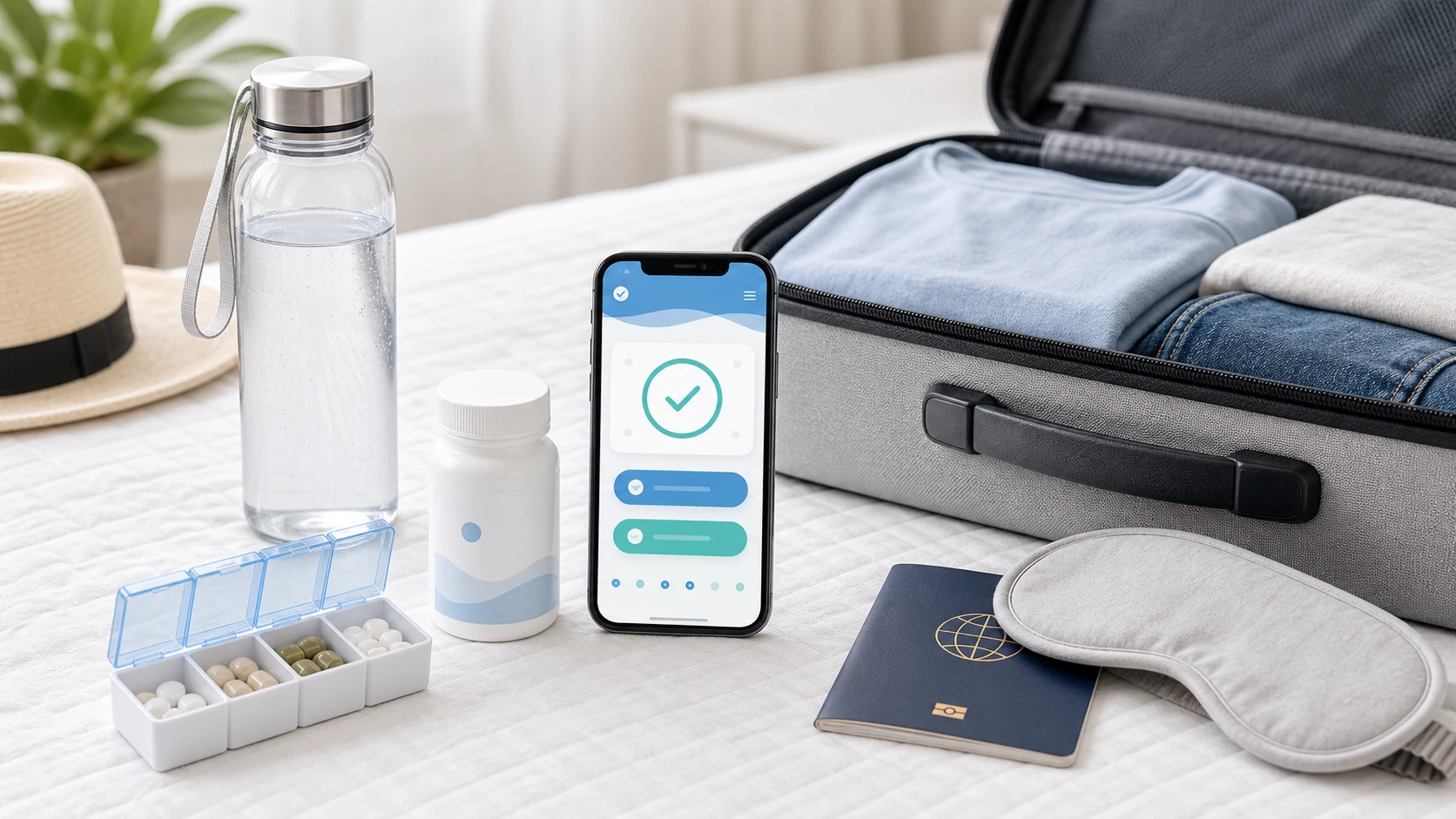
Travel is easier when your supplement reminders and packed vitamins match your actual schedule.
If reminders are not appearing, check notification permissions, Focus or Do Not Disturb settings, and travel related time changes.
Common Mistakes When Setting Supplement Reminders
Most supplement reminder problems are easy to fix.
Mistake 1: Setting the Reminder Too Early
A reminder that appears while you are rushing is easy to dismiss.
If your mornings are chaotic, do not set the reminder for the moment you wake up. Set it for breakfast, coffee, or the first calm moment of the day.
The right reminder time is the time you can act, not the earliest possible time.
Mistake 2: Using a Vague Alert Name
A vague alert does not give enough instruction.
Rename "vitamins" to something more useful, like "Take morning vitamins with breakfast." The clearer the reminder, the easier it is to follow.
Reminder wording matters because it tells your brain exactly what to do.
Mistake 3: Putting Vitamins Somewhere Inconvenient
If the bottle is hard to reach, the reminder may not work.
Move your daily supplements to the place where the routine happens. Keep them visible enough to remember, but stored safely and according to the label.
A reminder should appear where the supplement is easy to take.
Mistake 4: Adding Too Many Reminders at Once
Too many notifications can create alert fatigue.
Start with one or two reminders. Add more only if your routine truly needs them.
A simple reminder system is usually easier to maintain than a crowded one.
Mistake 5: Ignoring Missed Reminders Instead of Adjusting Them
If you keep missing reminders, your setup needs improvement.
Change the time, label, location, or notification settings. The goal is to make the routine easier, not to repeat the same failed setup.
Missed reminders should lead to adjustment, not frustration.
The best supplement reminders are realistic, clear, and connected to a routine you already have.
Conclusion: Your Phone Can Help You Take Supplements Consistently
Setting supplement reminders on your phone is one of the simplest ways to build a better vitamin routine. With Vitamin Alerts, you can add your supplements, choose reminder times, allow notifications, and create a system that fits your real life. Start with one important supplement, connect the alert to a habit like breakfast or brushing your teeth, and make sure your phone settings allow the reminder to appear. A reminder does not need to be complicated. It just needs to show up at the right time and tell you exactly what to do.
FAQ
How do I set supplement reminders on my phone?
The easiest way is to use a vitamin reminder app like Vitamin Alerts. Add your supplement, choose the reminder time, allow notifications, and save the alert.
What is the best app for supplement reminders?
The best supplement reminder app is one that is simple enough to use consistently. Vitamin Alerts is built specifically to help people add their vitamins and get reminded when it is time to take them.
What is the best time to set vitamin reminders?
The best time is the time you can actually act on the reminder. Many people choose breakfast, coffee, lunch, dinner, or brushing their teeth because those habits already happen every day.
Why are my supplement reminders not showing on my phone?
Your reminders may not show if notifications are turned off, Focus Mode or Do Not Disturb is blocking them, the app is set to silent, or your phone settings are limiting notifications.
Can I set morning and night supplement reminders?
Yes. You can set morning and night supplement reminders if your routine needs both. If you are just starting, it may be easier to begin with one main reminder first.
Should I use a phone alarm or a vitamin reminder app?
A phone alarm can work for a very simple routine, but a vitamin reminder app is usually better for supplement habits because it lets you name the supplement, organize the routine, and create clearer reminders.
Turn this guide into a real reminder routine.
Vitamin Alerts helps you add vitamins, choose routine times, test alerts, and come back to the same schedule tomorrow.
Comments
Public comments are coming later. For now, send article feedback or vitamin routine questions through the support page.
Contact support