
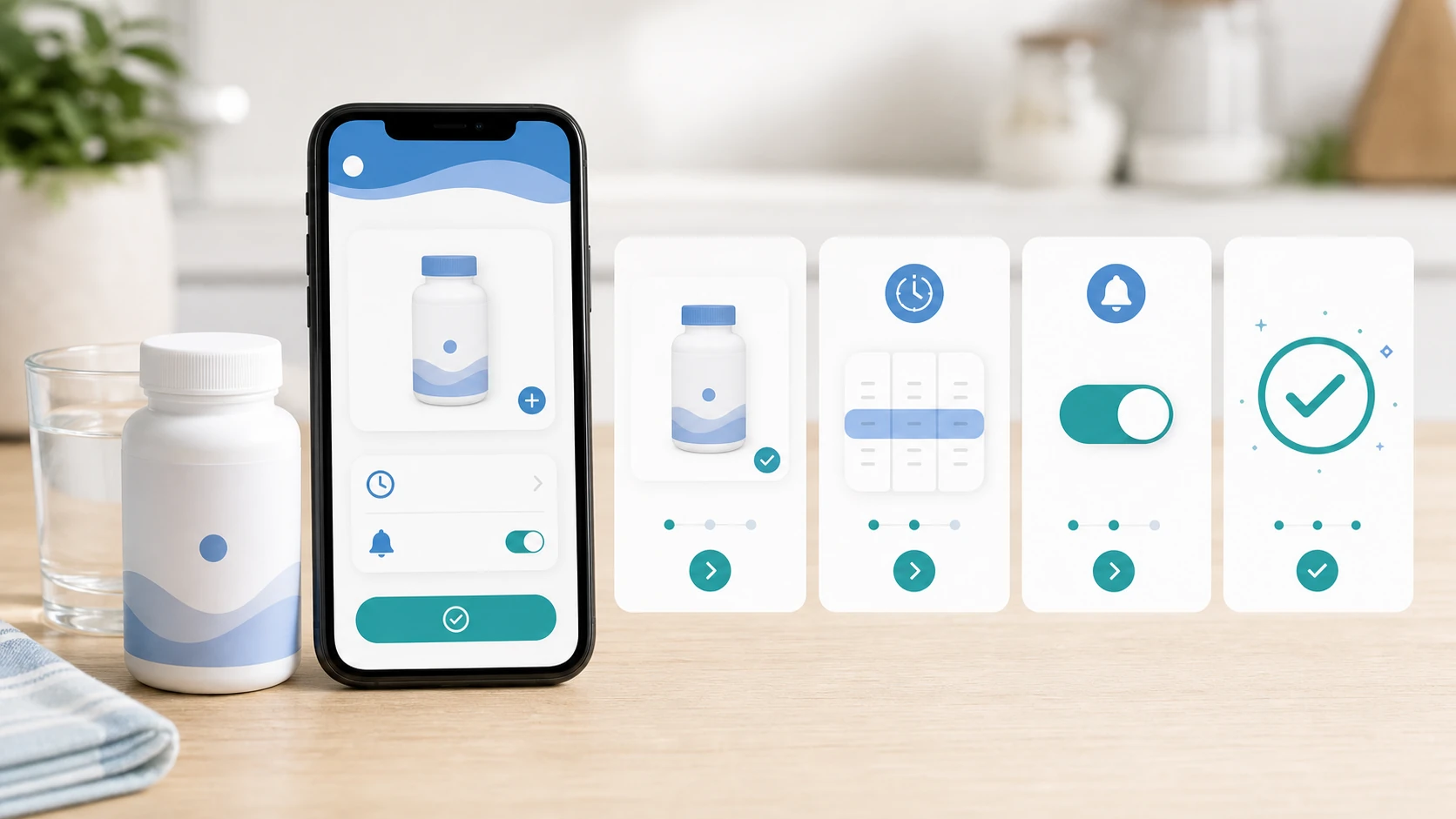
Vitamin Alerts is built for one simple problem: people buy vitamins, but they forget to take them. The app helps you add your vitamins, set reminder times, and get alerted when it is time to take them. That simplicity is the point. You do not need a complicated health dashboard to build a better supplement routine. You need a clear list, a realistic reminder, and a habit you can repeat. This guide explains how to use Vitamin Alerts in the simplest possible way so your vitamins become part of your day instead of another thing you keep forgetting.
What Is Vitamin Alerts?
Vitamin Alerts is a vitamin reminder app that helps you remember when to take your vitamins and supplements.
The Main Purpose of Vitamin Alerts
Vitamin Alerts exists to make consistency easier. If you want the habit strategy behind the app, read how to build a simple vitamin routine before adding every product you own.
Most people do not forget vitamins because they do not care about their health. They forget because the bottle is out of sight, the routine is unclear, or the day gets busy. Vitamin Alerts gives your supplement routine a direct prompt. You add what you take, choose when you want to be reminded, and let the app alert you at the right time.
The basic idea is simple:
- Add your vitamin.
- Choose your reminder time.
- Get alerted.
- Take your vitamin.
- Repeat daily.
This is the core habit loop. The app does not need to be complicated to be useful. The power comes from using it every day.
Vitamin Alerts helps turn vitamins from something you mean to take into something you are reminded to take.
Why a Vitamin Reminder App Helps
A phone alarm can work, but it usually lacks context.
A regular alarm might say "vitamins," but that still leaves you wondering which vitamin, when you planned to take it, whether it belongs with breakfast, or whether it is part of your morning or night routine. A dedicated vitamin reminder app is more specific. It gives your supplements a named place in your daily schedule.
For example, instead of a vague reminder, your alert can be built around a real routine:
- "Take morning vitamins with breakfast."
- "Take magnesium after brushing teeth."
- "Take vitamin D after coffee."
That makes the reminder easier to act on because it tells you what to do and when to do it.
A vitamin reminder app works best when it turns a vague intention into a clear action.
Vitamin Alerts is useful because it keeps your supplement routine simple, visible, and easier to repeat.
How to Set Up Vitamin Alerts
The best way to use Vitamin Alerts is to start with one simple reminder.
Step 1: Add Your First Vitamin
Start by adding one vitamin you already take or want to take daily.
Do not begin with your entire cabinet. If you add too much at once, the app can start to feel like another task. Choose the most important daily vitamin first. This may be your multivitamin, magnesium, vitamin D, probiotic, collagen, or any supplement already in your routine.
When adding the vitamin, use the product name clearly. Instead of writing something vague like "pill," write the actual name.
Better examples:
- Multivitamin
- Vitamin D
- Magnesium Glycinate
- Probiotic
- Collagen
- Ashwagandha
- Lion's Mane
A clear name makes the reminder more useful when it appears.
Start with one vitamin and name it clearly so the reminder is easy to understand.
Step 2: Choose the Right Reminder Time
The right reminder time is the time you can actually respond.
Do not choose a reminder time because it sounds ideal. Choose one that matches your real day. If you are always rushing at 7:00 AM, that is probably not the best reminder time. If you always drink coffee at 8:30 AM, that may be better. If your nights are calmer, an evening reminder may work better.
Good reminder times are usually connected to something you already do:
If you are not sure which reminder block to choose, use best reminder times for vitamins before adding every supplement.
- After making coffee
- With breakfast
- With lunch
- After dinner
- After brushing your teeth
- Before setting up for bed
This is how the app becomes part of a routine rather than a random notification.
A reminder works better when it is tied to a real habit you already have.
If you are not sure which time to choose, the vitamin schedule template can help you compare morning, meal, evening, and bedtime options.
Step 3: Allow Notifications
Vitamin Alerts can only help if notifications are turned on.
When your phone asks whether Vitamin Alerts can send notifications, allow them. If notifications are blocked, you may have the vitamin added in the app, but you will not receive the alert when you need it.
After enabling notifications, check that your phone settings are not hiding them. Some phones have Focus Mode, Do Not Disturb, Sleep Mode, or notification summaries that can delay or silence alerts. If you are not seeing reminders, check your notification settings.
Quick notification checklist:
Notifications are allowed for Vitamin Alerts.
Sounds or banners are enabled if you want them.
Focus Mode is not blocking the app.
The reminder time is correct.
Your phone time zone is correct when traveling.
Notifications are the bridge between setting the reminder and actually seeing it.
For a more detailed notification setup, use how to set supplement reminders on your phone.
Step 4: Repeat for Other Vitamins
After the first reminder is working, add the rest of your routine.
Only add products you truly want reminders for. If something is occasional, seasonal, or not part of your real routine, you do not need to add it immediately. Keep the app clean so the reminders stay meaningful.
A simple setup might look like this:
- Morning reminder:
- Multivitamin
- Vitamin D
- Probiotic
- Evening reminder:
- Magnesium
- Relaxation support
- Bedtime supplement
If all your supplements happen at one time, keep them under one routine. If some belong in the morning and others at night, separate them into different reminders.
Add more vitamins only after your first reminder feels easy to follow.
Setting up Vitamin Alerts should be simple: add the vitamin, choose the time, allow notifications, and repeat only as needed.
How to Build a Daily Routine With Vitamin Alerts
The app works best when it supports a real life routine.
Connect Your Alert to an Existing Habit
A reminder is stronger when it is attached to something you already do.
This is the simplest way to make Vitamin Alerts work. Instead of letting the alert appear at a random time, place it next to a stable part of your day. Your existing habit becomes the cue, and the app becomes the backup.
Examples:
- Coffee plus Vitamin Alerts
- Breakfast plus Vitamin Alerts
- Water bottle plus Vitamin Alerts
- Toothbrush plus Vitamin Alerts
- Bedside routine plus Vitamin Alerts
This makes your supplement routine easier because you are not starting from nothing. You are adding one small step to a pattern that already exists.
Vitamin Alerts works best when the alert supports a habit you already have.
Put Your Vitamins Where the Alert Happens
The reminder should go off near the vitamins.
If your alert says to take vitamins with breakfast, the vitamins should be near your breakfast area. If your alert says to take magnesium after brushing your teeth, the magnesium should be near your evening routine. If the alert goes off but the bottle is upstairs, in a cabinet, or still in a shipping box, you are more likely to dismiss it.
Create a simple vitamin station:
Keep daily vitamins in one place.
Keep water nearby.
Keep the bottles visible enough to remember.
Follow storage instructions on the label.
Keep vitamins safely away from children and pets.
Your environment should make the reminder easy to act on.
The alert works better when the vitamin is already within reach.
Use One Main Reminder at First
Do not overbuild the routine in the beginning.
A common mistake is setting too many reminders at once. Morning reminders, lunch reminders, afternoon reminders, night reminders, refill reminders, and backup reminders can quickly become noise. If everything alerts you, nothing feels important.
Start with one main daily reminder. Once that feels natural, add a second routine if needed.
A beginner friendly setup:
- One morning reminder
- One clear vitamin station
- One glass of water
- One daily action
- This keeps the habit easy.
One reminder you actually follow is better than five reminders you ignore.
Vitamin Alerts works best when the app, your environment, and your daily habit all point to the same action.
Best Times to Use Vitamin Alerts
The best reminder time depends on when your life is most consistent.
Morning Vitamin Alerts
Morning reminders are useful because they happen before the day gets away from you.
A morning Vitamin Alerts routine can be simple:
- Wake up.
- Make coffee or breakfast.
- Get the Vitamin Alerts reminder.
- Take your vitamins with water.
- Continue your day.
Morning works well for people who have a steady breakfast, coffee, or water routine. It may not work well if your mornings are rushed, unpredictable, or spent driving.
Morning alerts are best for people who can act on the reminder before the day gets busy.
Afternoon Vitamin Alerts
Afternoon reminders can work well for people who skip breakfast or have a reliable lunch routine.
If lunch is your most consistent meal, set the reminder for that time. The challenge is that work, errands, and meetings can interrupt the middle of the day. To make an afternoon reminder work, keep it very specific.
Examples:
- "Take vitamins with lunch."
- "Take supplements before going back to work."
- "Take vitamins with water after lunch."
A vague afternoon alert is easy to dismiss. A specific one is easier to follow.
Afternoon alerts work best when they are tied to a stable lunch or work break.
Evening Vitamin Alerts
Evening reminders are useful for people with calmer nights.
You can connect the alert to dinner, brushing your teeth, preparing for bed, or filling a water glass. Evening works especially well if you do not like taking vitamins in the morning or if your routine naturally slows down at night.
An evening Vitamin Alerts routine can look like this:
- Finish dinner.
- Get your alert.
- Take evening vitamins.
- Brush teeth.
- Prepare for bed.
Try not to set the reminder too late. If you are already tired, you may ignore it.
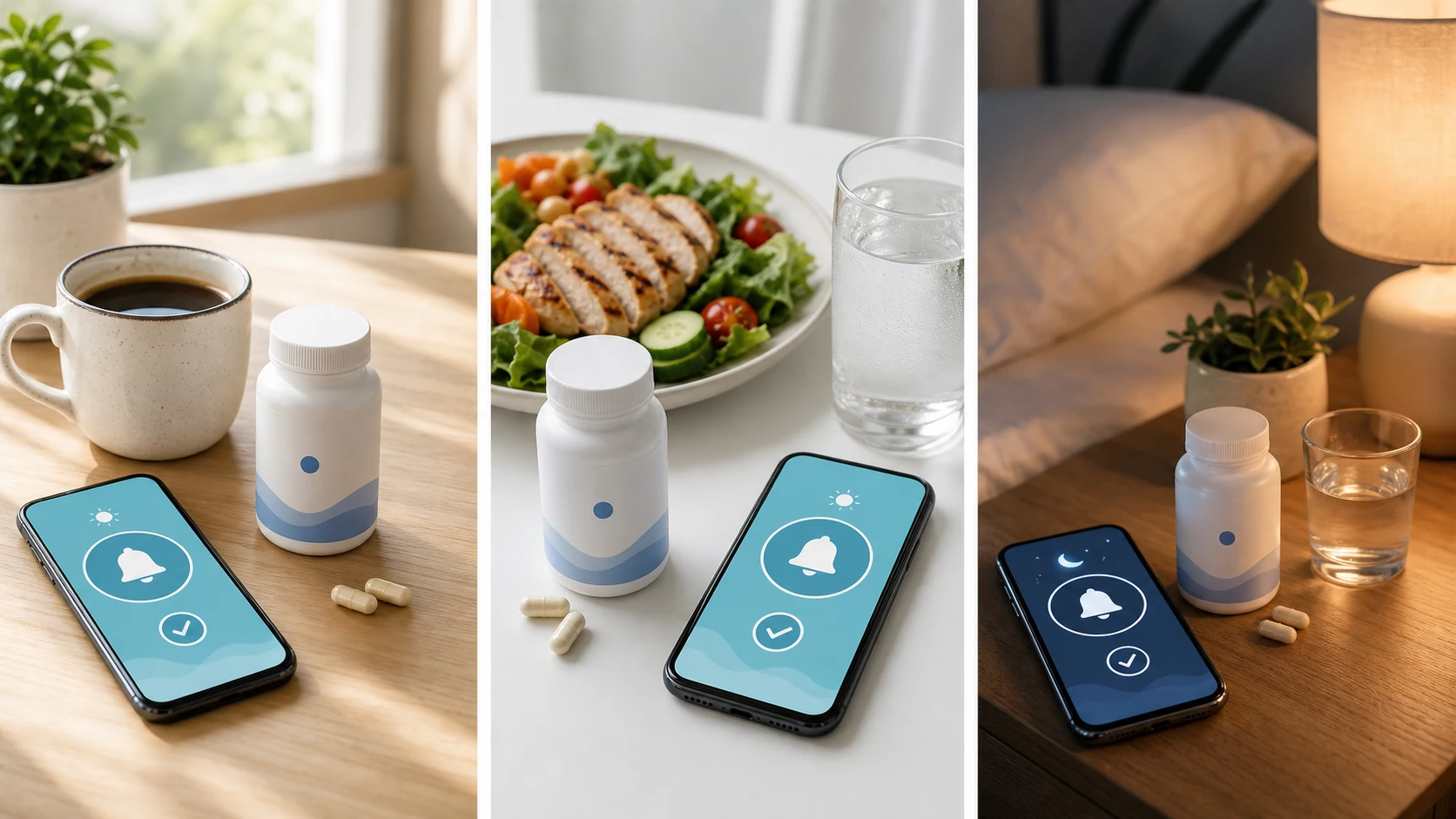
Evening alerts work best when they happen before you are too tired to act.
The best Vitamin Alerts reminder time is the time you can repeat most consistently.
How to Use Vitamin Alerts Without Getting Notification Fatigue
A reminder should help you, not annoy you.
Keep Alerts Specific
Specific alerts are easier to follow.
If every alert just says "vitamins," it can become background noise. Make the reminder label clear enough that you know exactly what action to take.
Good reminder labels:
- Take morning vitamins with breakfast
- Take vitamin D after coffee
- Take magnesium after brushing teeth
- Take supplements with lunch
- Take evening vitamins with water
The more specific the reminder, the less thinking you have to do.
A clear alert saves mental energy because it tells you the next action.
Adjust Reminder Times When They Stop Working
Your routine may change.
A reminder that worked last month may not work now. Maybe your work schedule changed. Maybe you stopped eating breakfast. Maybe you started going to bed earlier. If you keep dismissing the same alert, do not blame yourself immediately. Adjust the reminder.
Ask:
- Am I usually busy when this alert appears?
- Are my vitamins nearby at this time?
- Do I have water available?
- Would another time be easier?
- Should this be a morning or evening habit instead?
A reminder is only useful if it matches your real life.
If you keep ignoring an alert, the timing probably needs to change.
Remove Reminders You Do Not Need
Too many reminders can make the app less useful.
If you are no longer taking a supplement, remove the reminder. If you combined products into one routine, simplify the schedule. If a reminder keeps going off for something you do not actually use, it trains you to ignore the app.
Keep Vitamin Alerts clean:
- Remove old supplements.
- Update changed routines.
- Keep only useful reminders.
- Rename confusing alerts.
Review your setup once per month.
A cleaner app creates stronger reminders.
Vitamin Alerts is most effective when every notification has a clear purpose.
How to Use Vitamin Alerts When You Miss a Day
Missing a day does not ruin the routine.
Do Not Treat One Missed Day as Failure
Everyone misses sometimes.
The important thing is getting back to the routine quickly. If you miss a vitamin reminder, do not turn it into a full reset. Simply return to your normal schedule at the next planned time.
A useful rule is:
Return at the next normal reminder.
This keeps the habit calm. You are not trying to be perfect. You are trying to be consistent over time.
A missed day is only a problem if it becomes the reason you stop.
For the calm recovery version, read what to do if you miss your vitamins and build that reset into your routine.
Use Missed Days as Information
A missed alert can teach you something.
If you missed the reminder because you were busy, the time may be wrong. If you missed it because the bottle was in another room, the vitamin station may be wrong. If you missed it because the alert was vague, the reminder label may be wrong.
Use the miss to improve the system:
- Change the time.
- Move the bottle.
- Rename the alert.
Connect it to a stronger habit.
Simplify the routine.
Missed reminders are not just mistakes. They are clues about how to improve the routine.
Restart Immediately
The best recovery is fast recovery.
Open Vitamin Alerts, look at your routine, and continue. Do not wait for Monday. Do not wait for next month. Do not wait until you feel motivated again. The routine becomes stronger every time you return to it.
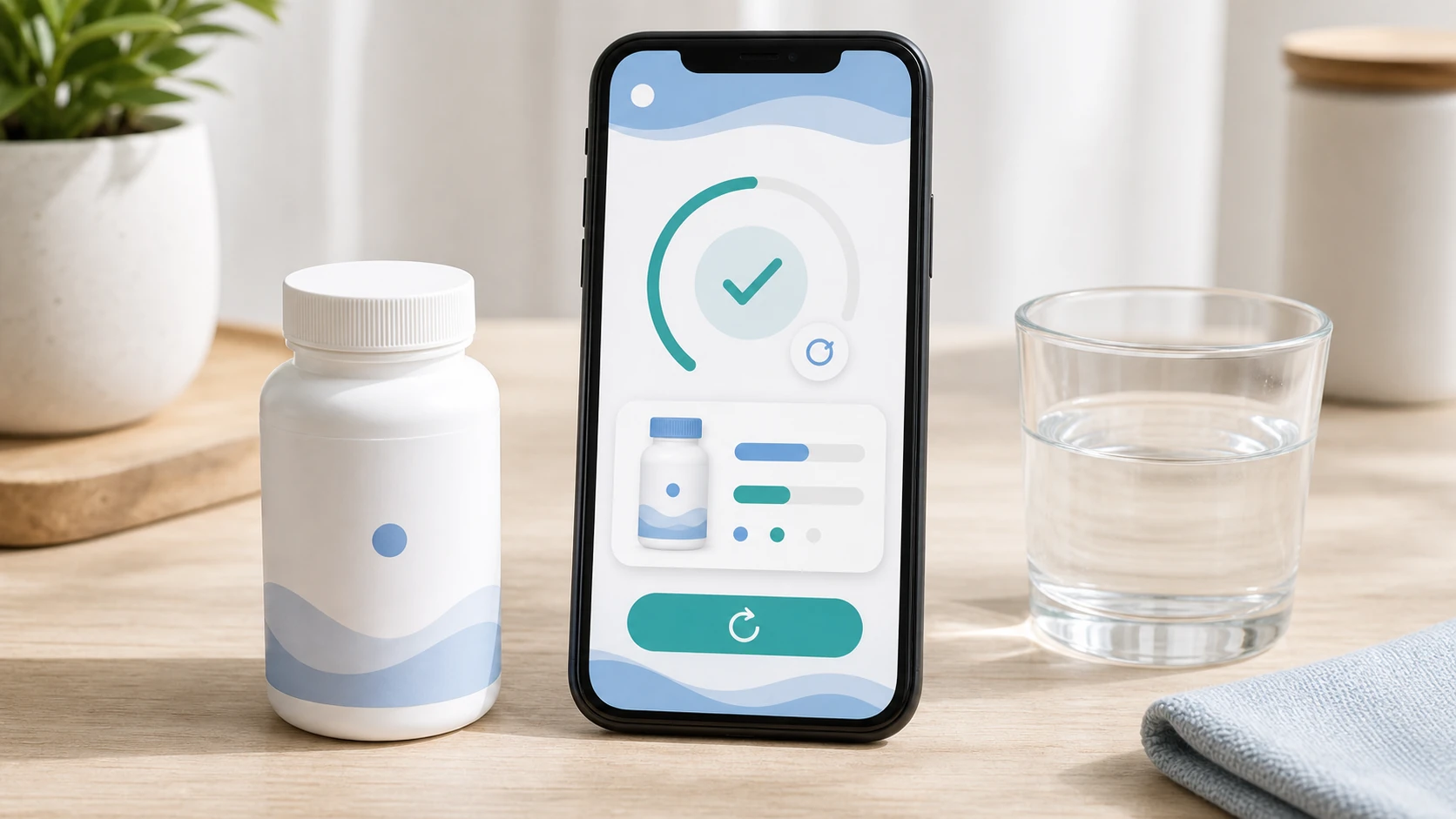
The faster you return, the stronger the habit becomes.
Vitamin Alerts is there to support consistency, not perfection.
Simple Weekly Vitamin Alerts Reset
A five minute weekly reset keeps your reminder system clean.
Review Your Vitamin List
Once a week, open Vitamin Alerts and review what is listed.
Ask:
- Am I still taking this?
- Is the reminder time still correct?
- Is the name clear?
- Is this supplement part of my daily routine?
- Should anything be removed?
This keeps the app from becoming cluttered. A reminder app only works well when the reminders are current.
A weekly review keeps Vitamin Alerts accurate and useful.
Check Your Bottles
Your app reminds you, but your bottles still need to be available.
Once per week, look at your vitamin station. Check whether bottles are getting low, whether anything needs to be reordered, and whether your setup still makes sense.
A simple weekly check:
Refill pill organizer if you use one.
Check which bottles are running low.
Move daily vitamins back to the right place.
Throw away empty bottles.
Update your reminders if your routine changed.
A reminder works best when the product is actually ready to take.
Prepare for Travel or Schedule Changes
If your week looks different, adjust your routine before it breaks.
Travel, work changes, early calls, late nights, and busy weekends can all interrupt vitamin habits. Before the schedule changes, decide how you will use Vitamin Alerts.
For trips specifically, how to remember vitamins when traveling gives you a simple pack, reminder, and return-home checklist.
Travel setup:
Pack only the vitamins you need.
Keep them in a safe, organized container.
Keep reminders active.
Adjust reminder times if your schedule changes.
Return to your normal setup when you get home.
A little planning helps Vitamin Alerts keep working when your routine changes.
A weekly reset helps the app stay aligned with your actual life.
Conclusion: Vitamin Alerts Helps You Build a Simple Vitamin Habit
Vitamin Alerts is simple by design. You add your vitamins, choose your reminder times, allow notifications, and let the app alert you when it is time to take them. The best way to use it is to connect each reminder to a real habit, keep your vitamins near the place where the alert happens, and adjust the schedule when life changes. You do not need a perfect routine. You need a simple system you can repeat. Vitamin Alerts gives you the prompt. Your daily routine does the rest.
FAQ
What is Vitamin Alerts?
Vitamin Alerts is a vitamin reminder app that helps you remember to take your vitamins and supplements by letting you add your vitamins and set reminder alerts.
How do I use Vitamin Alerts?
To use Vitamin Alerts, add the vitamin you want to remember, choose the time you want to take it, allow notifications, and follow the alert when it appears.
Can Vitamin Alerts remind me every day?
Yes, Vitamin Alerts is designed to help with daily vitamin reminders so you can build a consistent supplement routine.
What is the best time to set a vitamin reminder?
The best time to set a vitamin reminder is the time you can actually act on it. Many people choose breakfast, coffee, lunch, dinner, or brushing their teeth because those habits already happen every day.
Why am I not seeing my Vitamin Alerts reminder?
If you are not seeing your reminder, check that notifications are enabled, your reminder time is correct, your phone is not blocking alerts with Focus Mode or Do Not Disturb, and the app has permission to send notifications.
Should I add all my supplements to Vitamin Alerts at once?
You can, but it is often easier to start with one main daily vitamin first. Once that reminder feels natural, add the rest of your routine.
Turn this guide into a real reminder routine.
Vitamin Alerts helps you add vitamins, choose routine times, test alerts, and come back to the same schedule tomorrow.
Comments
Public comments are coming later. For now, send article feedback or vitamin routine questions through the support page.
Contact support